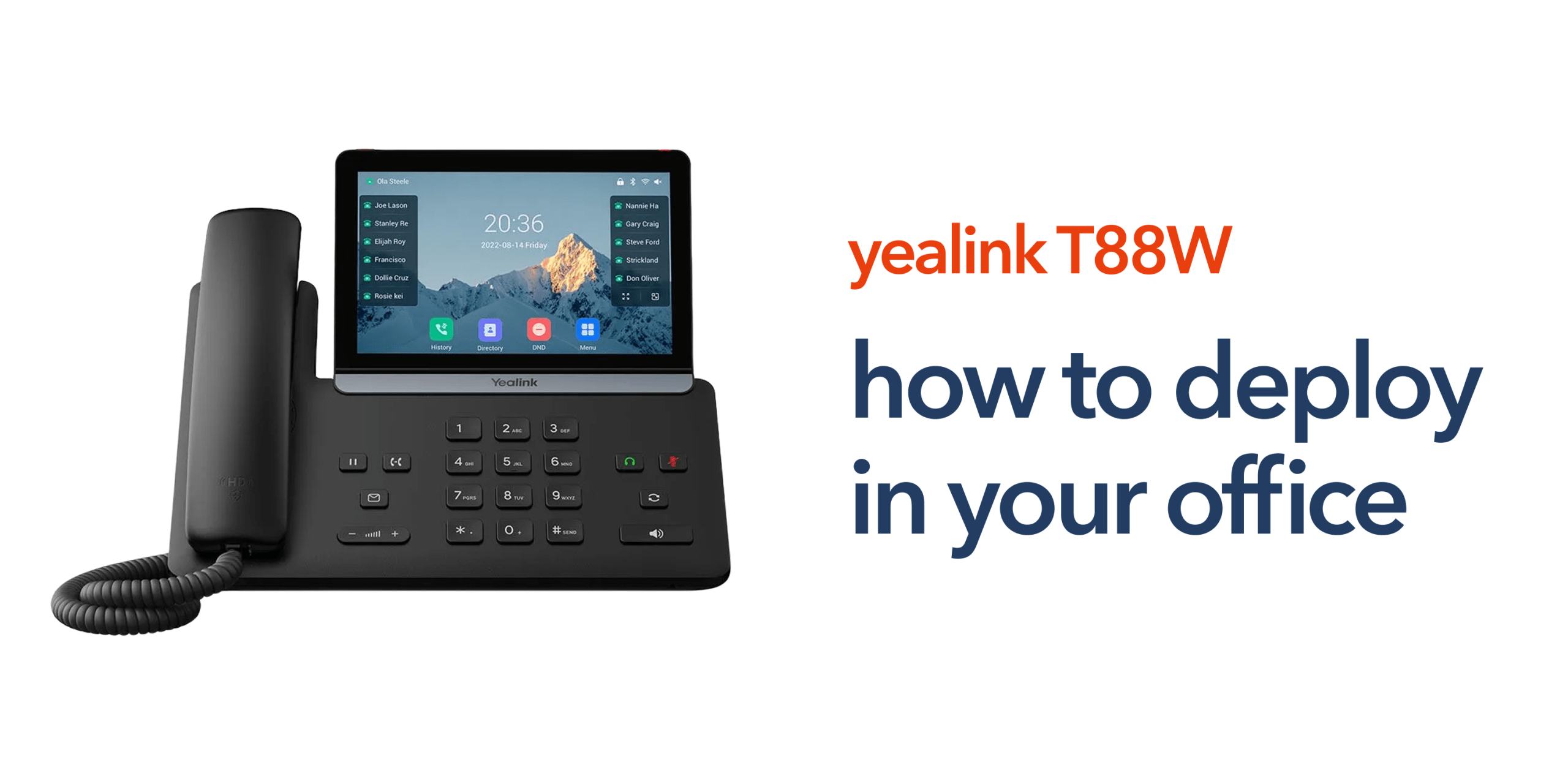
Modern businesses rely on reliable communications. When calls drop, audio quality suffers, or systems are difficult to manage, productivity quickly declines. Deploying the Yealink SIP T88W Pro can solve these challenges by providing a professional VoIP desk phone designed for cloud telephony environments. However, successful deployment requires more than simply plugging in a device. Your network, phone system configuration, and office setup all play a role.
This step-by-step guide explains how to deploy Yealink SIP T88W Pro devices in a business environment so your team can benefit from reliable Voice Over Internet Protocol communications.
Understanding the Yealink SIP T88W Pro
Before deployment begins, it helps to understand what the device offers. The Yealink SIP T88W Pro is a premium VoIP phone designed for businesses that rely heavily on voice communication. It supports advanced cloud telephony platforms and integrates easily with modern business phone systems. The key specifications include a large colour touchscreen display, integrated Wi-Fi connectivity, high definition audio for clear voice quality, and multiple SIP accounts for flexible call routing.
It also features compatibility with leading VoIP phone systems and Bluetooth headset support. These features make it suitable for professional environments such as finance offices, retail operations, and customer service teams.
Preparing Your Office Network
Successful deployment begins with your network infrastructure. VoIP phones depend on reliable internet connectivity. Without sufficient bandwidth and network stability, call quality may suffer. Before you deploy Yealink SIP T88W Pro devices, confirm the following:
Reliable Business Broadband
Your office should have stable business broadband or business internet with sufficient upload and download speeds to support voice traffic.
Router and Network Configuration
Ensure your network supports Quality of Service settings for voice traffic, secure firewall configuration, and DHCP or static IP assignment for devices. These settings help prioritise VoIP traffic and maintain call quality.
VoIP Platform Configuration
Your business phone system or cloud telephony platform must be ready before deployment. This includes SIP credentials. extension numbers, user accounts, and provisioning details. Once these elements are prepared, the device deployment process becomes much simpler.
Step-by-Step: Deploy Yealink SIP T88W Pro
Now that you’ve prepared the network and VoIP platform, the deployment process becomes much more straightforward. With the basics in place, you can begin the step-by-step process to deploy Yealink SIP T88W Pro devices across your office and connect them to your business phone system.
Step 1: Connect the Device
Start by connecting the phone to your office network. You can deploy Yealink SIP T88W Pro using either a wired Ethernet connection to your network switch or by connecting the device to Wi-Fi through the phone’s interface.
For most business environments, a wired Ethernet connection is recommended because it provides more stable connectivity, lower latency, and more consistent call quality. This is particularly important in offices where multiple VoIP phones operate simultaneously and reliable voice communication is critical.
Step 2: Power the Phone
The device can be powered in two ways:
- Power over Ethernet (PoE) from a compatible network switch
- External power adapter
Power over Ethernet is the most common option in modern offices because it delivers both power and network connectivity through a single Ethernet cable. This reduces cable clutter on desks and makes it easier to deploy multiple phones across an office environment. It also simplifies installation for IT teams managing larger VoIP phone system rollouts.
If PoE is not available on your network switch, the external power adapter can be used instead. While this method requires a separate power source, it still allows the Yealink SIP T88W Pro to operate normally within your business phone system.
Step 3: Access the Phone Interface
Once the phone powers on, the next step is to access the configuration interface, you can do this directly from the phone’s touchscreen display or through the device’s web interface using its assigned IP address on your network.
The web interface is typically preferred in office deployments because it allows easier configuration from a desktop computer. From this interface, you can manage key settings such as SIP account registration, network configuration, and device preferences. Proper configuration at this stage ensures the phone connects smoothly to your VoIP phone system and operates reliably within your business telecoms environment.
Step 4: Configure SIP Credentials
To complete the deployment, enter the SIP credentials provided by your VoIP or cloud telephony platform. These credentials allow the phone to authenticate and connect to your business phone system. You will typically need the SIP server address, username or extension number, and authentication password.
Once these details are entered and saved, the device will attempt to register with your VoIP phone system. When registration is successful, the phone becomes fully active and ready to place and receive calls across your business communications network.
Step 5: Test Calls and Audio Quality
Once the phone has successfully registered with your VoIP phone system, run a series of tests to confirm everything is working as expected. Testing helps identify any configuration or network issues before the device is used for daily business communication. You must check the following:
- Inbound calls to confirm that the extension receives calls correctly.
- Outbound calls to verify dialling and call routing.
- Voicemail functionality to ensure messages can be accessed.
- Headset compatibility for wired or Bluetooth headsets.
- Speakerphone quality for clear hands-free communication.
Running these checks ensures your Yealink VoIP phone integrates smoothly with your wider telecom infrastructure and delivers reliable call performance for your business.
Deploying Multiple Phones Across an Office
Many businesses deploy several devices at once. If you are rolling out phones across multiple desks or departments, consider using auto provisioning. This allows IT teams to configure multiple phones automatically through the VoIP platform.
The benefits include faster deployment, consistent configuration, and easier system management. This approach is especially useful for growing organisations or multi-site businesses.
Why Proper Deployment Matters
A poorly configured VoIP phone can lead to issues such as dropped calls, registration failures, or inconsistent audio quality. Deploying the Yealink SIP T88W Pro correctly ensures:
- Stable communications.
- Reliable call quality.
- Easy device management.
- Smooth integration with cloud telephony platforms.
For many organisations, the phone becomes a daily productivity tool used across departments.
Final Thoughts
Deploying modern VoIP phones does not need to be complicated. With the right network preparation and VoIP configuration, businesses can deploy Yealink SIP T88W Pro devices quickly and reliably.
As more organisations transition away from legacy PSTN systems, VoIP phones are becoming a central part of modern business telecoms. When deployed correctly, they provide dependable communications that support customer service, collaboration, and day-to-day operations.
FAQs:
How long does it take to deploy Yealink SIP T88W Pro?
In most offices, a single device can be deployed in around 10 to 15 minutes once the VoIP platform is ready.
Does the Yealink SIP T88W Pro require special networking equipment?
No. Most modern business broadband networks support VoIP devices. However, Quality of Service settings can help improve call quality.
Can multiple Yealink phones be deployed at once?
Yes. Many organisations deploy Yealink phones using auto provisioning, which allows several devices to be configured simultaneously.
Is the Yealink SIP T88W Pro suitable for small businesses?
Yes. It works well for SMEs that want professional VoIP communications without complex telecom infrastructure.