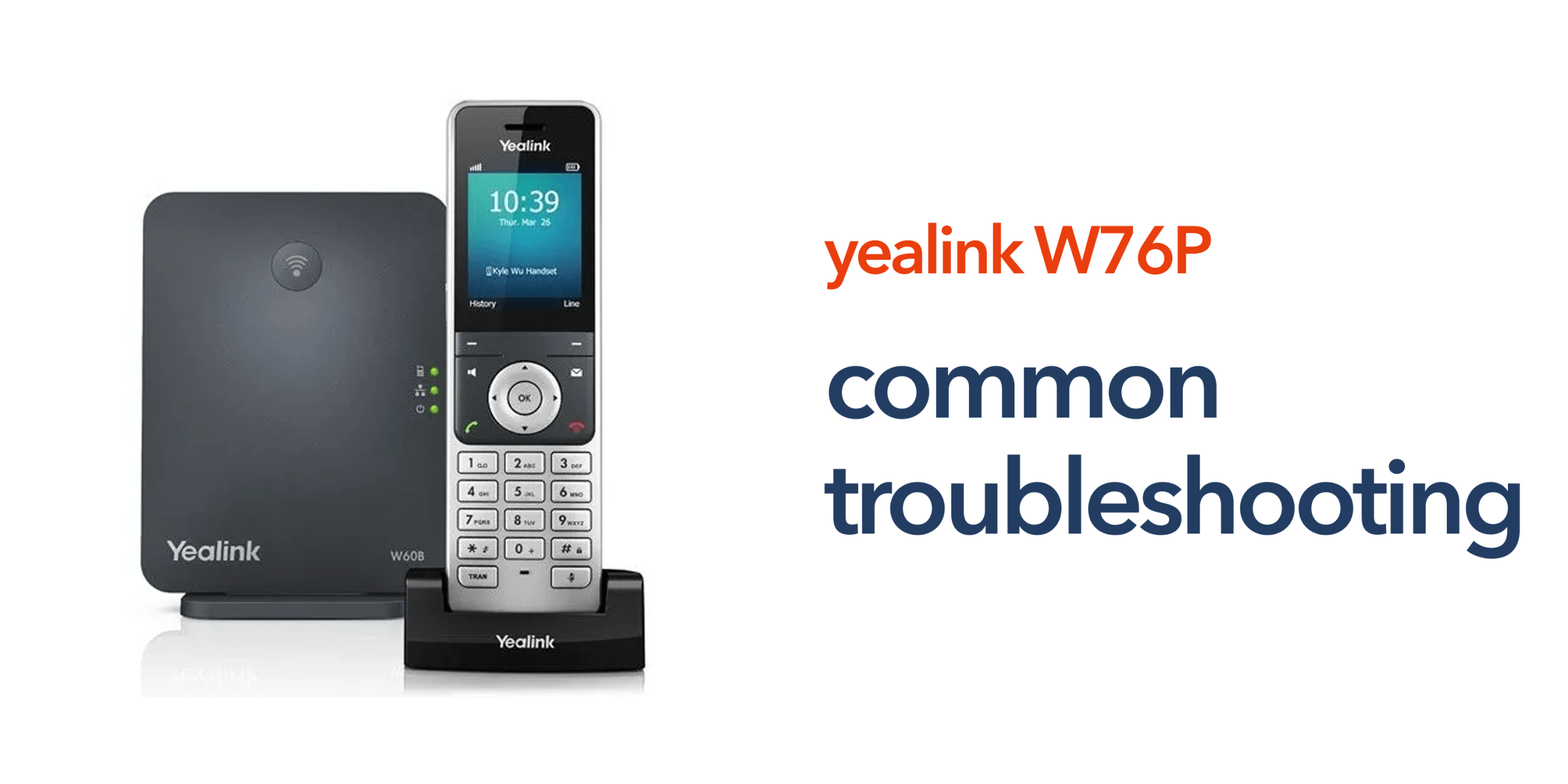
Cordless VoIP phones like the Yealink W76P provide businesses with the flexibility to stay connected while staff move freely around the workplace. However, like any networked communication device, they can occasionally encounter technical problems that affect call quality, connectivity, or handset performance. Understanding the most common Yealink W76P troubleshooting scenarios allows administrators to quickly identify and resolve issues, minimising disruption to business operations.
This guide highlights the typical problems organisations may face with the Yealink W76P DECT phone system, including connectivity interruptions, call quality issues, handset registration errors, and interference. It also provides practical steps and best practices that administrators can follow to restore reliable communication, optimise performance, and ensure that the wireless phone system continues to support day-to-day business needs efficiently.
Device Not Registering With the VoIP Server
One of the most common issues during Yealink W76P troubleshooting is a handset failing to register with the VoIP server. When this happens, the device cannot place or receive calls, which can disrupt workflow and reduce productivity across the organisation. Common causes include incorrect SIP account credentials, such as a mismatched username or password, an incorrect server address that prevents the handset from connecting to the VoIP platform, or network connectivity problems that block communication between the base station and the server. Administrators can resolve this issue by verifying the account details, confirming server settings, and checking network connections, ensuring that the system is fully operational and staff remain reachable at all times.
How to resolve the issue
Administrators should first check the VoIP account settings in the device interface. Ensure the following information matches the credentials supplied by the telecom provider:
- SIP server address
- Extension number
- Authentication username
- Account password.
If these details are correct, check that the base station is connected to the network and can access the internet.
Poor Call Quality or Audio Issues
Poor audio quality is a common issue with the Yealink W76P. Users may experience echo during calls, noticeable audio delays, dropped calls, or distorted voice quality. These problems can disrupt workflow, reduce efficiency, and impact customer interactions if not addressed promptly.
Possible causes
In most cases, these issues are related to network performance rather than the device itself. Common causes include insufficient business broadband bandwidth, network congestion during peak periods, poorly configured Quality of Service (QoS) settings, and unstable or intermittent internet connections. Understanding these potential causes helps administrators identify the root of the problem more quickly.
How to improve call quality
To resolve call quality issues, administrators should review network capacity, optimise QoS settings to prioritise VoIP traffic, and ensure a stable, high-speed internet connection. Addressing these factors can significantly improve audio clarity, reduce dropped calls, and maintain reliable communication across the organisation.
Handset Losing Connection to the Base Station
Because the Yealink W76P uses digital enhanced cordless telecommunications, the handset communicates wirelessly with the base station. If the handset moves outside the signal range, the connection may drop.
Common causes
Connection problems may occur due to:
- weak DECT coverage
- thick building materials
- metal shelving or equipment
- large physical distances from the base station
How to resolve coverage issues
Administrators can take several steps to enhance DECT signal reliability for the Yealink W76P. Relocating the base station to a more central position within the workspace can help ensure that handsets maintain a stronger, more consistent connection. Elevating the base station can also improve signal propagation, reducing dead zones caused by furniture, walls, or other obstacles. In larger offices, warehouses, or multi-floor environments, installing additional DECT repeaters may be necessary to extend coverage and maintain clear communication.
By implementing these measures, businesses can optimise wireless performance and ensure reliable connectivity across the entire workplace, allowing staff to move freely without experiencing dropped calls or weak signals.
Unable to Access the Web Configuration Interface
Administrators may sometimes encounter difficulties accessing the Yealink W76P’s web management portal during troubleshooting. This issue typically occurs when the device’s IP address cannot be reached from the network, preventing access to configuration settings.
Possible reasons
Common causes for this problem include an incorrect IP address, network firewall restrictions blocking access, or the device being connected to a different network segment than the computer attempting to reach it. Recognising these potential causes helps administrators quickly narrow down the source of the problem.
Troubleshooting steps
To resolve the issue:
- Check the base station display to confirm the current IP address.
- Ensure the computer accessing the interface is on the same network.
- Verify that firewall rules are not blocking access to the device.
Once the interface is accessible, administrators can continue diagnosing other configuration issues.
Firmware Compatibility Problems
Occasionally, Yealink W76P devices may experience issues due to outdated firmware. Firmware updates released by the manufacturer often address security vulnerabilities, improve compatibility with VoIP platforms, and enhance overall system stability. During troubleshooting, administrators should verify that each device is running the latest supported firmware version. Keeping firmware up to date can resolve many unexpected behaviours and ensure the phone system continues to perform reliably.
Power or Hardware Problems
Although less common, hardware-related issues can also affect the Yealink W76P. Symptoms may include the base station failing to power on, handsets not charging properly, or intermittent system resets. Administrators should first confirm that the power adapter is functioning correctly, all cables are securely connected, and the network switch port is operational. If hardware problems persist despite these checks, replacement equipment may be necessary to maintain uninterrupted communication.
Preventing Future VoIP Device Issues
Many common problems encountered during Yealink W76P troubleshooting can be prevented through good telecom infrastructure practices. Businesses should prioritise stable broadband connectivity, properly configured VoIP phone systems, regular firmware updates, and a reliable network infrastructure. By ensuring these elements are in place, organisations can reduce the risk of registration errors, call quality issues, and connectivity problems. With the right setup, cordless VoIP devices like the Yealink W76P can deliver consistent, high-quality communication across the workplace for many years.
Reliable Business Communications With Circle.cloud
As organisations transition away from the public switched telephone network, modern cloud telephony systems are becoming the foundation of business communications. Devices such as the Yealink W76P business phone provide flexible wireless communication when supported by a reliable infrastructure. Circle.cloud helps UK organisations deploy and maintain dependable VoIP phone systems, business connectivity and cloud-based telecom platforms designed for modern workplaces. With the right telecom partner, businesses can ensure their communication systems remain reliable, scalable and ready for the future.
FAQs
What is Yealink W76P troubleshooting?
Yealink W76P troubleshooting involves diagnosing and resolving issues affecting the device, such as registration failures, call quality problems or wireless connectivity issues.
Why is my Yealink W76P not registering?
This usually occurs due to incorrect SIP credentials, server configuration errors or network connectivity problems.
What causes poor VoIP call quality?
Poor call quality is often related to network performance, insufficient bandwidth or lack of Quality of Service settings.
How can I improve the DECT signal strength?
Placing the base station centrally, reducing obstacles and installing repeaters can help improve wireless coverage.
Is the Yealink W76P suitable for business environments?
Yes. The device is widely used in business environments because it provides flexible cordless communication within modern VoIP phone systems.