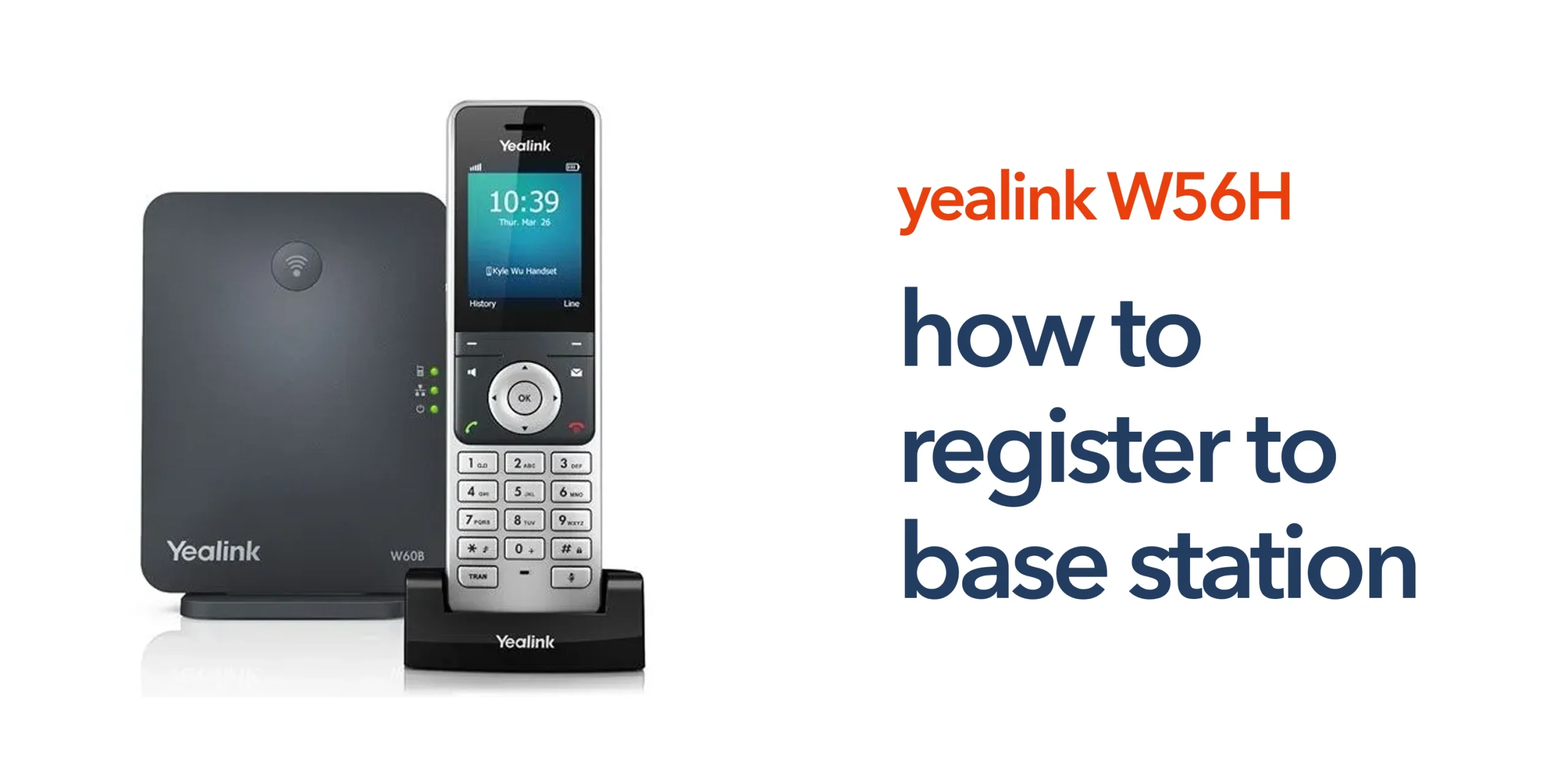
Many businesses experience issues with wireless VoIP phones failing to connect or dropping calls unexpectedly. In most cases, the root cause is not the network or the device itself, but incorrect handset registration.
If you are trying to register Yealink W56H to base station and it is not set up correctly, the handset will not function at all. You will not be able to make or receive calls, and the device will remain inactive. This can quickly disrupt day-to-day communication, particularly in environments where mobility is essential.
The good news is that when you follow the correct process to register Yealink W56H to the base station, the setup is straightforward. With the right steps, you can connect your handset quickly and ensure it works reliably as part of your wider VoIP system. Getting this right from the start helps prevent ongoing issues and keeps your business communication running smoothly.
What Registration Means and Why It Matters
Before you register Yealink W56H to base station, it is important to understand what registration actually does. The handset does not connect directly to your VoIP system. It connects to a DECT base station, which links it to your wider telecom setup. Registration pairs the handset with this base station so it can function as part of your business phone system. This process ensures:
- The handset can communicate with the base station
- Calls are routed to the correct extension
- Users are assigned properly
Without registration, the handset will remain inactive and unable to make or receive calls.
Before You Start
A few quick checks before you register Yealink W56H to base station can save time and prevent common issues later. Make sure your base station is powered on and connected to your network, and that it has already been configured with the correct SIP or VoIP credentials. Your handset should be fully charged and within range of the base station to ensure a stable connection during setup. It is also important to note that even if registration is successful, calls may still fail if the base station itself is not configured correctly within your wider telecom system.
Step-by-Step: Register Yealink W56H to a Base Station
Registering your handset correctly is a simple process when followed step by step. Taking a structured approach helps avoid common errors and ensures your device connects properly to your wider VoIP system. The steps below will guide you through how to register Yealink W56H to base station quickly and reliably.
Enable Registration Mode on the Base Station
Before the handset can connect, the base station must be placed into registration mode. This allows it to accept new devices for a short period. On most Yealink base stations, this is done by pressing and holding the paging button until the indicator light begins flashing. This step is essential, as the handset will not detect the base station unless registration mode is active.
Access the Handset Registration Settings
Once the base station is ready, the next step to register Yealink W56H to base station is to initiate the process from the handset.
- Press the OK button to open the menu
- Navigate to Settings
- Select Registration
- Choose Register Handset
This will prompt the device to begin searching for available base stations within range, allowing you to proceed with the connection.
Select and Connect to the Base Station
After scanning, the handset will display a list of available base stations. Select the correct one from the list and enter the registration PIN when prompted. The default PIN is usually 0000 unless it has been changed. Entering the correct PIN allows the handset to securely pair with the base station and complete the connection.
Confirm Successful Registration
Once connected, the handset will display its assigned extension and signal strength. This confirms that the registration process has been completed successfully. At this point, the handset is ready to make and receive calls as part of your business phone system.
Common Registration Issues and How to Fix Them
Even when you follow the correct steps to register Yealink W56H to base station, issues can still occur. Most problems are simple to resolve once you understand what is causing them.
Handset Cannot Find Base Station
If the handset cannot detect the base station, it usually means the base station is not in registration mode, you are out of range, or there is signal interference. This is a common issue in larger environments or areas with physical obstructions. To fix this, restart the registration mode on the base station and move closer to it to ensure a stable connection during setup.
Incorrect PIN Error
If you receive a PIN error during registration, it typically means the default PIN has been changed. Without the correct PIN, the handset will not be able to pair with the base station. To resolve this, check your base station settings to confirm the correct PIN or reset it if necessary before attempting registration again.
Registration Succeeds but Calls Fail
If registration completes successfully but calls are not working, the issue is usually related to your VoIP configuration rather than the handset itself. This can happen if SIP credentials are incorrect, the network is unstable, or the extension has not been assigned properly. To fix this, check your SIP credentials, verify network connectivity, and ensure the handset is linked to the correct user or extension.
Best Practices for Reliable Setup
Registering your handset is only one part of the process. To ensure reliable performance after you register Yealink W56H to base station, your overall setup needs to be planned correctly.
- Place base stations centrally to ensure consistent DECT coverage across your environment.
- Avoid physical obstructions such as thick walls, metal structures, or machinery that can weaken signal strength.
- Ensure your network is stable and optimised for VoIP to maintain clear and uninterrupted calls.
- Assign extensions clearly to avoid confusion and ensure calls are routed correctly.
A properly configured system improves call quality and prevents most day-to-day communication issues.
Is Professional Setup Worth It?
While it is straightforward to register Yealink W56H to the base station, many businesses still encounter avoidable issues due to incomplete or incorrect setup. Working with a telecom provider ensures devices are configured correctly from day one, networks are optimised for consistent call quality, and the overall system is designed to scale as your business grows. It also means support is available if something goes wrong. This reduces downtime, improves reliability, and helps avoid costly mistakes that can disrupt your business communication.
Get Your Setup Right from the Start
Registering your handset may seem like a small task, but it has a direct impact on how your business communicates every day. If your setup is not handled properly, it can lead to poor call quality, missed calls, and unnecessary disruption for your team. Getting the full system right from the start is what makes the difference. circle.cloud helps UK businesses implement reliable, cloud-first communication systems that are simple to manage and built for long-term performance. Speak to our team to ensure your Yealink setup is configured correctly and ready to support your business without issues.
FAQs
How many handsets can connect to one base station?
Most Yealink base stations support multiple handsets, typically up to 8, depending on the model.
Do I need to register each handset individually?
Yes. Each handset must be registered separately to assign extensions correctly.
Can I register the handset to multiple base stations?
No. A handset can only be actively registered to one base station at a time.
What is the default registration PIN?
The default is usually 0000, but it may be changed for security reasons.