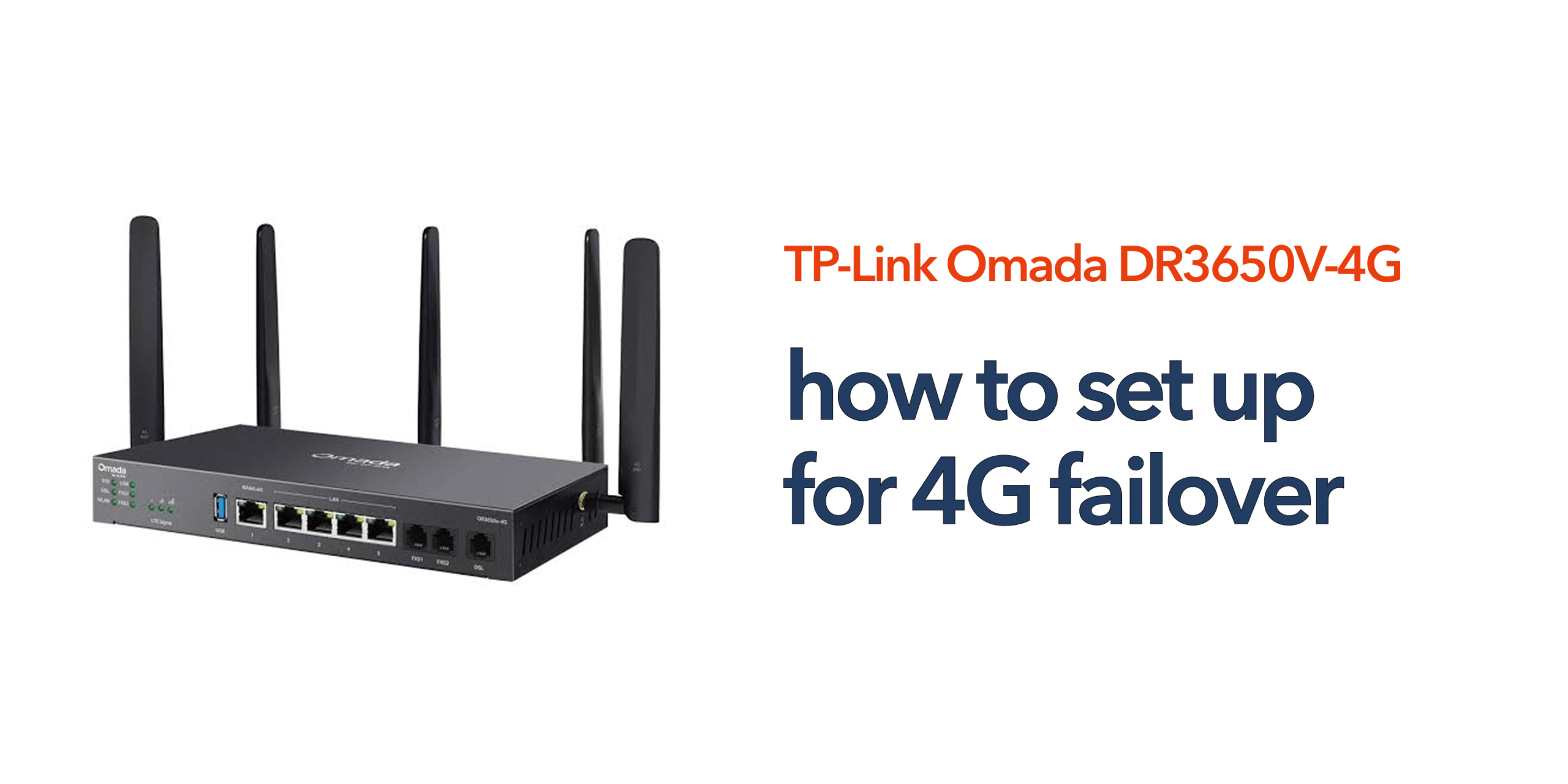
Modern businesses depend on reliable internet connectivity more than ever. Cloud phone systems, Microsoft 365, CRM platforms, video conferencing, and customer service tools all require a stable connection to function properly. The problem is that even the fastest fibre broadband service can experience unexpected outages. When connectivity is lost, productivity often stops with it. This is where the TP-Link Omada DR3650V-4G provides a significant advantage. Unlike standard business routers, it includes built-in 4G connectivity that can automatically take over when your primary internet connection fails. Understanding how to set up TP-Link Omada DR3650V-4G correctly ensures your business remains connected when broadband disruptions occur.
What Is 4G Failover?
Before beginning the setup process, it is useful to understand how failover works. 4G failover is a business continuity feature that automatically switches internet traffic from your primary broadband connection to a mobile 4G network whenever the main connection becomes unavailable.
Once the broadband service is restored, the router can automatically switch back to the primary connection. This process helps minimise downtime and allows staff to continue accessing cloud applications, making calls, sending emails, and serving customers. For organisations that rely heavily on internet-based services, failover can provide an important layer of protection.
What You Need Before You Begin
Setting up 4G failover is relatively straightforward, but there are a few things you should prepare first. You will need:
- A TP-Link Omada DR3650V-4G router
- An active Nano SIM card with a mobile data plan
- A working broadband connection
- Access to the Omada management interface
- Administrator credentials
It is also worth checking the mobile network coverage at your location. A strong 4G signal will help ensure the backup connection performs effectively during an outage.
Installing the SIM Card
The first step is to install the SIM card that will provide your backup internet connection. The DR3650V-4G includes dual Nano SIM slots, allowing businesses to configure additional resilience if required.
Power off the router before inserting the SIM card. Once installed, power the device back on and allow it to detect the mobile network. Most modern SIM cards will connect automatically, although some providers may require APN settings to be entered manually. After the connection is established, the router should display the status of the mobile network within the management interface.
Connecting Your Primary Broadband Service
Next, connect your main internet service. Depending on your environment, this may be a fibre broadband, Ethernet WAN, or DSL connection. The DR3650V-4G supports multiple WAN options, making it suitable for a wide range of business connectivity scenarios.
Once connected, verify that the primary broadband service is functioning normally before proceeding with failover configuration. This ensures the router has a stable primary connection to monitor.
Accessing the Router Management Interface
To configure failover settings, log in to the router’s administration portal. This can be completed through the local web interface or through the Omada Cloud SDN platform if your organisation uses centralised management. The Omada platform provides a single location to monitor devices, manage policies, and configure network settings across multiple sites. For businesses with several offices, this can significantly simplify ongoing administration.
Configuring 4G Failover
Once inside the management interface, navigate to the WAN or Internet settings section. The DR3650V-4G allows administrators to define how different internet connections are prioritised. The broadband connection should typically be configured as the primary WAN. The 4G connection should then be assigned as the backup WAN.
When configured correctly, the router continuously monitors the health of the primary connection. If broadband becomes unavailable, traffic is automatically redirected through the 4G connection without requiring manual intervention. For most businesses, the default failover settings provide an effective balance between performance and reliability.
Testing the Failover Configuration
A failover setup should always be tested before relying on it during a real outage. Once the configuration is complete, disconnect the primary broadband connection temporarily. The router should detect the loss of connectivity and switch to the 4G network automatically. During testing, verify that:
- Internet access is restored on the 4G connection
- Cloud applications can be accessed again once the switch completes
- VoIP devices successfully re-register and new calls can be placed and received
- Email and collaboration tools remain accessible
Because the WAN connection changes during failover, any calls in progress at the exact moment of switchover may drop and need to be re-dialled — this is normal and not a fault. After reconnecting the broadband, confirm that the router returns traffic to the primary connection. Regular testing helps ensure failover remains operational when it is needed most.
Why 4G Failover Matters for Business Communications
Many organisations underestimate the impact of internet downtime. When broadband fails, the consequences often extend beyond simple web browsing. Businesses can lose access to hosted VoIP phone systems, Microsoft Teams, CRM platforms, customer support systems, video conferencing services, and cloud storage platforms. For customer-facing organisations, even a short disruption can affect service levels and revenue. By configuring 4G failover correctly, businesses can reduce these risks and maintain operational continuity.
Additional Best Practices
While failover provides valuable protection, there are several steps businesses can take to maximise reliability:
- Choose a mobile provider with strong local coverage and sufficient data allowances
- Regularly review router firmware updates to maintain security and performance
- Monitor failover activity periodically to ensure the backup connection remains available and functioning correctly
- For organisations operating multiple sites, use centralised monitoring through Omada Cloud SDN to help identify potential connectivity issues before they affect users
Is the TP-Link Omada DR3650V-4G Easy to Set Up?
For most businesses, the answer is yes. The TP-Link Omada DR3650V-4G is designed to simplify connectivity resilience by combining broadband routing and 4G backup within a single device. Rather than deploying multiple routers and creating complex failover configurations, businesses can manage everything through one platform. Once configured, the router automatically monitors connectivity and switches to 4G whenever the primary connection becomes unavailable.
For organisations that rely on cloud-first communications, VoIP services, and business-critical applications, taking the time to set up TP-Link Omada DR3650V-4G correctly can provide valuable protection against unexpected downtime and help keep teams connected when it matters most.
Speak to circle.cloud if you’d like help planning or configuring your 4G failover setup.
FAQs
How long does it take to set up TP-Link Omada DR3650V-4G? Most businesses can complete the initial setup and failover configuration in less than an hour, depending on their network requirements.
Does 4G failover happen automatically? Yes. Once configured, the router automatically detects broadband outages and switches traffic to the 4G connection.
Can I use two SIM cards in the DR3650V-4G? Yes. The router includes dual Nano SIM slots, providing additional flexibility and resilience.
Will VoIP phones continue working during failover? New calls can generally be placed and received once the 4G connection is active. However, any call already in progress at the exact moment of switchover may drop, as the change in WAN connection interrupts the existing call path — devices will then re-register automatically on the backup connection.
Is the DR3650V-4G suitable for small businesses? Yes. It is well-suited to SMEs that rely on cloud applications, hosted telephony, and uninterrupted internet access.