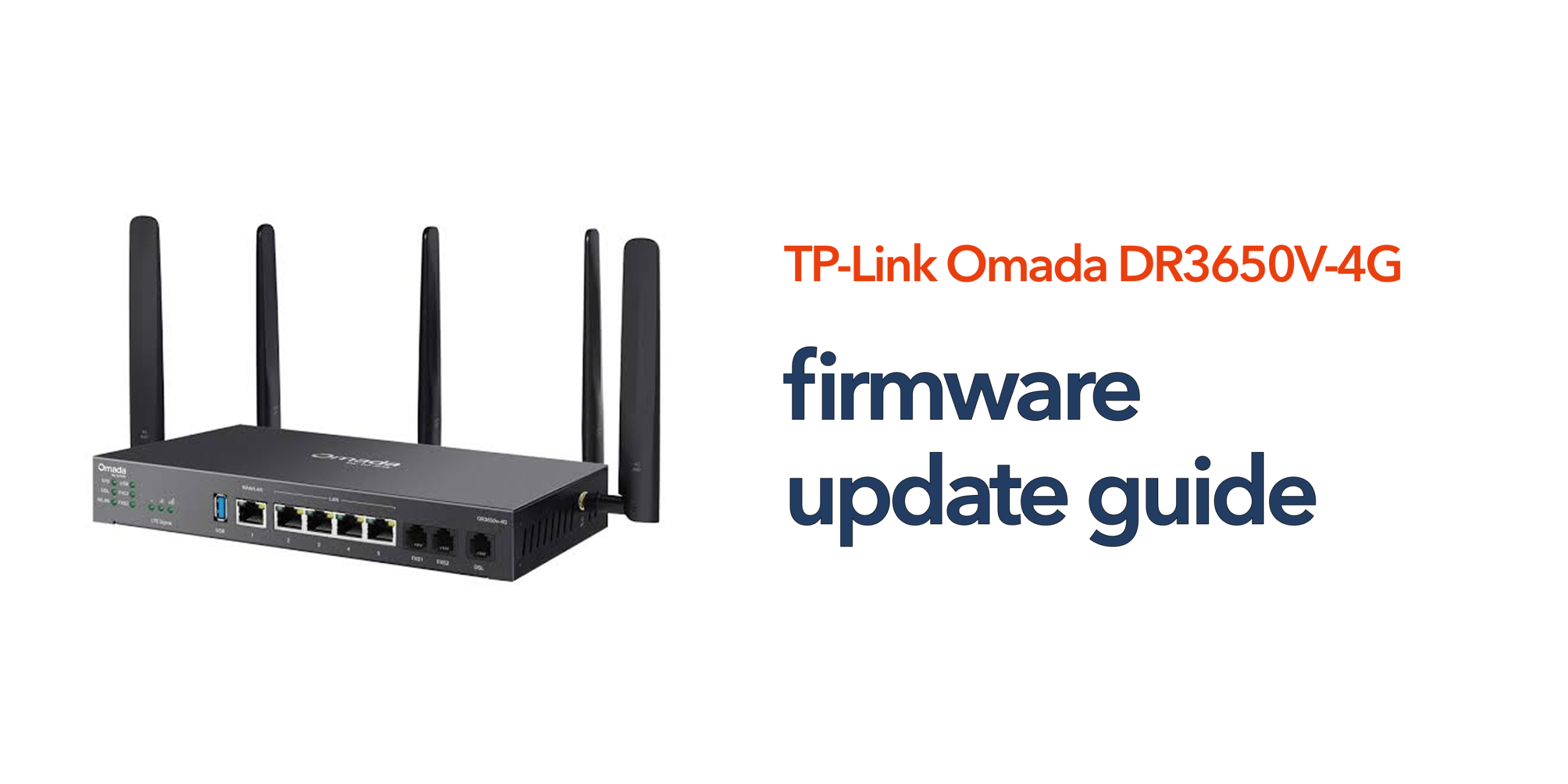
Reliable internet connectivity is essential for modern businesses. Whether your organisation relies on cloud applications, hosted VoIP, remote workers, or customer-facing systems, your network infrastructure needs to perform consistently. One of the simplest ways to maintain network performance and security is to keep your router firmware up to date. The TP-Link Omada DR3650V-4G is designed for business environments, combining broadband connectivity, advanced routing, and integrated 4G failover. However, like any business technology, it benefits from regular updates. This DR3650V-4G Firmware Update guide explains why firmware updates matter, how to perform them safely, and what businesses should consider before making changes to their network infrastructure.
What Is Router Firmware?
Firmware is the software that controls how your router operates. It manages critical functions such as:
- Internet connectivity
- Security features
- Routing performance
- Firewall operation
- VPN services
- Failover functionality
- Network management
Manufacturers regularly release firmware updates to improve performance, address security vulnerabilities, and introduce new features. Without updates, businesses may miss important improvements that help maintain a secure and reliable network.
Why Firmware Updates Matter
Many organisations only think about firmware when something stops working. In reality, regular firmware updates are an important part of maintaining a secure and reliable network. Rather than simply fixing problems after they occur, proactive updates help prevent issues before they impact business operations. A DR3650V-4G Firmware Update can improve security, stability, performance, and functionality, helping businesses get the most from their networking infrastructure.
A DR3650V-4G Firmware Update can provide:
Improved Security
Cyber threats continue to evolve, and network devices are often targeted by attackers looking to exploit known vulnerabilities. Firmware updates frequently include security patches that address newly discovered weaknesses and strengthen the router’s defences. Keeping the DR3650V-4G updated helps reduce exposure to security risks, protects sensitive business data, and supports compliance with internal security policies.
Better Stability
Firmware updates often contain fixes for software bugs that may affect the reliability of the router. These improvements can help reduce unexpected disconnects, service interruptions, configuration errors, and compatibility issues with connected devices or applications. For businesses that rely on uninterrupted internet access and cloud communications, enhanced stability can make a significant difference to day-to-day operations.
Performance Enhancements
Manufacturers regularly optimise firmware to improve routing efficiency and overall network performance. These enhancements can deliver faster response times, more efficient traffic handling, and better resource management. This is particularly valuable for organisations using cloud applications, VoIP services, video conferencing platforms, and remote access solutions where consistent performance is essential.
New Features
In addition to security and performance improvements, firmware releases may introduce new functionality. These updates can enhance network management capabilities, strengthen security controls, or improve connectivity options. By keeping firmware current, businesses can take advantage of new features without investing in additional hardware, helping to maximise the value of their existing infrastructure.
When Should You Update the DR3650V-4G?
There is no need to install every update immediately, but businesses should review firmware availability on a regular basis. Updates should be considered when TP-Link releases an important security patch, when a known issue is affecting the deployment, when new functionality is required, or when performance improvements are available.
Technical support teams may also recommend specific firmware versions to resolve known issues. Many organisations include firmware reviews as part of their quarterly IT maintenance and infrastructure management processes.
Preparing for a DR3650V-4G Firmware Update
Proper preparation helps minimise risk and reduces the likelihood of disruption during the update process. Before beginning, it is worth taking a few precautionary steps to ensure the upgrade proceeds smoothly and that recovery options are available if required.
Schedule a Maintenance Window
Most firmware updates require the router to restart, which can temporarily interrupt internet connectivity and business services. During this period, users will lose access to internet connections, VoIP calls, VPN sessions, and remote access services until the router finishes rebooting. Scheduling updates outside normal business hours helps minimise the impact on employees, customers, and ongoing operations.
Backup Existing Configuration
Before installing new firmware, always create a backup of the current router configuration. This provides a recovery point if settings are lost or if unexpected issues occur after the update. Important configurations such as WAN settings, VPN profiles, firewall rules, Quality of Service policies, and failover configurations should be protected to simplify recovery if needed.
Review Release Notes
TP-Link typically publishes release notes alongside firmware updates. These notes provide valuable information about what has changed, including new features, security fixes, resolved issues, known limitations, and configuration requirements. Reviewing release notes before installation allows administrators to understand the scope of the update and plan accordingly.
How to Perform a DR3650V-4G Firmware Update
The update process is generally straightforward, but it should be completed carefully to avoid interruptions that could affect the router’s operation.
Step 1: Download the Latest Firmware Begin by visiting the official TP-Link support portal and locating the latest firmware version for the DR3650V-4G. It is important to verify that the firmware matches the exact router model and hardware revision, as installing an incorrect version may cause compatibility issues.
Step 2: Access the Management Interface Log in to the router’s administration portal using authorised administrator credentials. Once logged in, navigate to the firmware management section where software updates can be uploaded and installed.
Step 3: Upload the Firmware File Select the downloaded firmware file and start the update process. During installation, it is essential not to interrupt the power supply, internet connection, or router operation. Interruptions during the update can lead to firmware corruption and potentially require additional recovery procedures.
Step 4: Allow the Router to Reboot Once the firmware has been installed successfully, the router will restart automatically. This process may take several minutes to complete, during which all connectivity — including internet access, VoIP, and VPN sessions — will be temporarily unavailable. During this time, avoid making any configuration changes and wait until all services have fully resumed.
Step 5: Verify the Installation After the router comes back online, verify that the update has completed successfully. Confirm that the firmware version has changed as expected, internet connectivity has been restored, failover services are operational, VPN connections reconnect successfully, and VoIP devices re-register and can make and receive calls normally. This validation helps ensure that business-critical services have resumed correctly after the reboot.
Testing After the Firmware Update
Successfully installing firmware is only part of the process. Businesses should always perform post-update testing to confirm the network is operating correctly and that key services have not been affected. Areas to test include:
Internet Connectivity
Start by confirming stable internet access across the organisation. Test access to websites, cloud applications, and other online services to ensure connectivity is functioning as expected.
VoIP Services
If the organisation uses hosted telephony or SIP services, verify that devices have re-registered successfully and that call quality is unaffected. Test inbound and outbound calls to confirm that communications are operating normally.
4G Failover
The DR3650V-4G’s integrated failover capability is a critical business continuity feature. Conduct a failover test by temporarily disconnecting the primary broadband connection and confirming that traffic automatically switches to the 4G connection. This helps verify that resilience measures remain operational following the update.
VPN Connectivity
Businesses with remote workers should ensure VPN services continue functioning correctly. Confirm that users can authenticate successfully and securely access company resources after the firmware installation.
Common Firmware Update Mistakes
Many firmware-related issues result from simple mistakes that can easily be avoided with proper planning and preparation.
Skipping Configuration Backups: Without a recent backup, recovering from a failed update or unexpected setting change means manually rebuilding the router’s configuration from scratch. Always back up WAN, VPN, firewall, and QoS settings beforehand so they can be restored quickly if needed.
Using Incorrect Firmware Versions: Installing firmware intended for a different hardware revision can cause compatibility problems and may prevent the router from operating correctly. Always verify model numbers and hardware versions before proceeding.
Updating During Business Hours: Performing updates while staff are actively using the network can result in unnecessary disruption. Scheduling updates outside working hours helps minimise the impact on productivity and customer communications.
Ignoring Post-Update Testing: Some organisations assume the update is complete once the router reboots successfully. However, testing critical services after installation is essential. Post-update validation helps identify any unexpected issues before they affect users, customers, or business operations.
Best Practices for Ongoing Firmware Management
Firmware maintenance should form part of a wider network management strategy. Consider:
- Reviewing firmware quarterly
- Monitoring security advisories
- Maintaining configuration backups
- Documenting update history
- Testing business-critical services after updates
A structured approach helps reduce risk and improve long-term reliability.
Is Firmware Maintenance Important for Business VoIP?
Absolutely. Many organisations use the DR3650V-4G to support hosted VoIP systems, SIP trunks, unified communications platforms, and cloud collaboration tools. Firmware improvements can directly impact call quality, network stability, and failover performance. Businesses that rely on uninterrupted communications should treat firmware maintenance as an important part of their operational resilience strategy.
Conclusion
Performing a DR3650V-4G Firmware Update is one of the simplest ways to maintain a secure, stable, and reliable business network. Regular updates help address vulnerabilities, improve performance, and ensure compatibility with modern cloud-based services. For organisations that depend on hosted VoIP, cloud applications, and resilient internet connectivity, proactive firmware management helps support business continuity and long-term network performance. As modern communications become increasingly cloud-based, keeping network infrastructure current remains an essential part of maintaining reliable connectivity.
If you’d rather have this managed for you, speak to circle.cloud about ongoing firmware and network maintenance support.
FAQs
How often should I perform a DR3650V-4G Firmware Update? Most businesses should review available firmware updates at least every quarter or whenever a critical security update is released.
Will a firmware update erase my settings? In most cases, settings remain intact, but creating a configuration backup before updating is strongly recommended.
How long does a firmware update take? The installation process typically takes only a few minutes, although reboot times may vary, and connectivity will be briefly unavailable while the router restarts.
Should I test VoIP services after updating? Yes. Businesses should verify call quality, registration status, and failover functionality after every firmware update.
Can firmware updates improve security? Yes. Many updates contain security patches that protect the router from newly discovered vulnerabilities and threats.