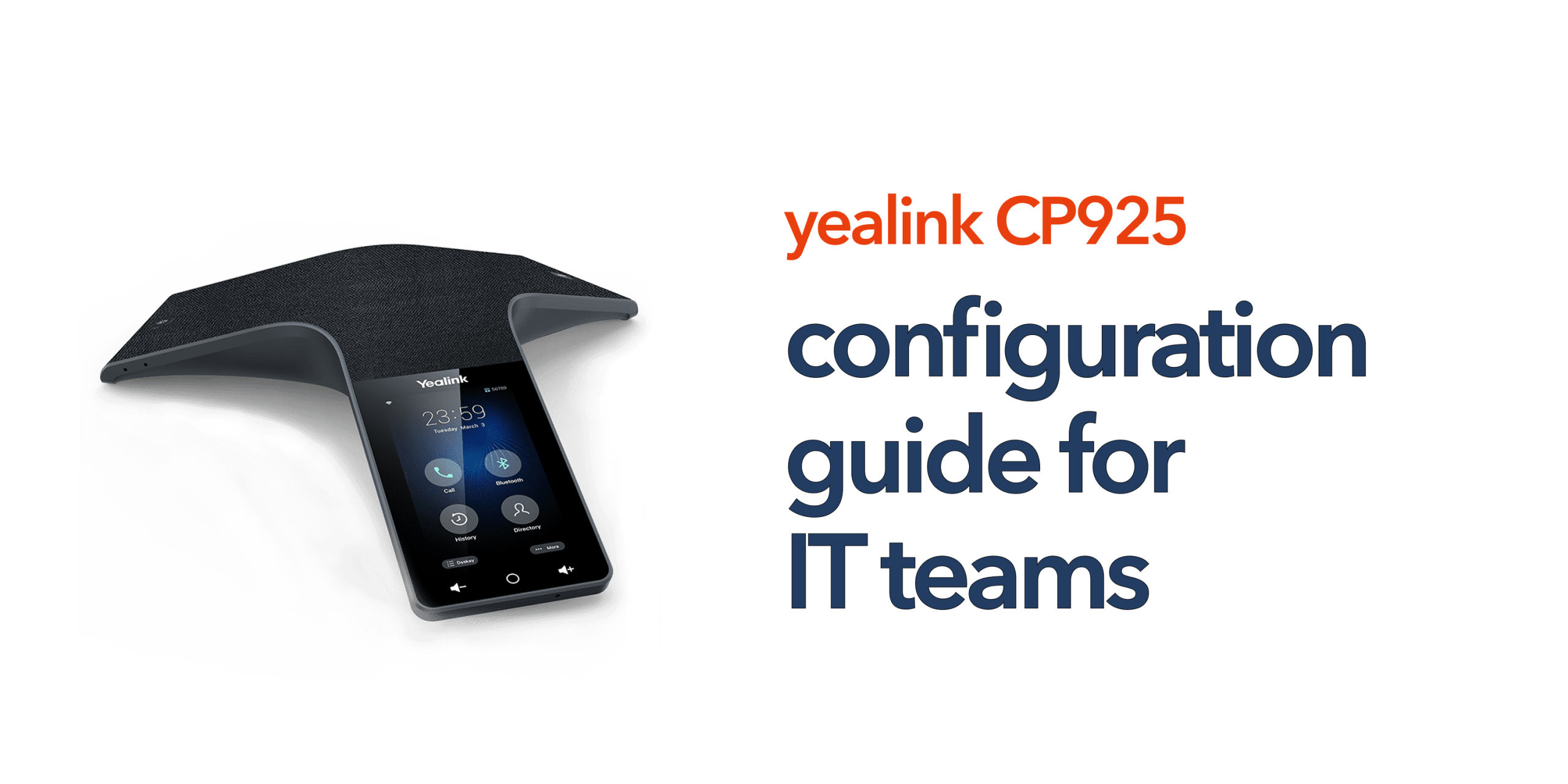
Configuring a conference phone goes far beyond simply connecting it to the network. For IT teams, the real focus is ensuring stability, security, and seamless integration with the organisation’s wider communication infrastructure.
The Yealink CP925 is designed to be flexible and adaptable across different VoIP and cloud telephony environments. However, this flexibility also means there are multiple Yealink CP925 Configuration options that need to be correctly set depending on your deployment scenario.
This guide provides a clear and structured overview of Yealink CP925 Configuration, helping IT teams deploy it confidently, maintain consistent performance, and ensure smooth integration within a business environment.
Understanding the Configuration Scope
Before making changes, it helps to understand what the configuration actually involves. For the CP925, this typically includes:
- Network configuration
- SIP account setup
- Provisioning and device management
- Audio and device settings
- Security and access control
Each of these areas plays a role in overall performance.
Accessing the Configuration Interface
The Yealink CP925 offers two main ways to access its configuration settings, depending on the level of control required. This flexibility allows both end users and IT teams to manage the device efficiently based on their needs.
Local Interface (Touchscreen)
The local touchscreen interface is designed for quick setup and basic adjustments directly on the device. It is best suited for small deployments or simple troubleshooting scenarios where immediate changes are needed without technical tools. This option allows users to handle essential functions quickly, but it is limited in advanced configuration capabilities.
Web Interface (Recommended for IT Teams)
The web interface is accessed by entering the device’s IP address into a browser and provides full administrative control over the Yealink CP925. IT teams can manage SIP accounts, configure network settings, perform firmware updates, and handle provisioning options from a centralised interface. Due to its comprehensive control and flexibility, the web interface is the preferred method for most business and enterprise deployments.
Network Configuration
Reliable connectivity is the foundation of any VoIP deployment, and the performance of the Yealink CP925 depends heavily on how well the network is configured. Proper network setup ensures stable calls, reduced latency, and consistent audio quality across all meetings.
DHCP vs Static IP
When configuring the Yealink CP925, choosing between DHCP and Static IP depends on your network environment. DHCP is the simpler option and works well in most standard office setups, as it automatically assigns an IP address to the device. However, Static IP is preferred in more controlled IT environments where devices need to be consistently identified, managed, and monitored. This approach provides greater stability and easier long-term administration.
VLAN Configuration
If your network uses VLAN segmentation for voice traffic, proper configuration is essential for maintaining call quality. The Yealink CP925 should be assigned the correct VLAN ID to ensure it operates on the designated voice network. In addition, Quality of Service (QoS) settings should be enabled to prioritise voice packets over general data traffic. This helps maintain clear, uninterrupted audio even during periods of high network usage.
WiFi vs Wired
For optimal performance, wired connectivity using Power over Ethernet (PoE) is the recommended setup for the Yealink CP925. Wired connections offer greater stability, lower latency, and more consistent call quality. WiFi can be used in environments where cabling is not practical, but it requires careful optimisation to avoid interference, signal drops, or reduced audio performance during meetings.
SIP Account Configuration
This is the stage where the Yealink CP925 is connected to your VoIP system, allowing it to make and receive calls as part of your business communication setup. Correct configuration here is essential for stable registration and reliable performance across all meetings.
Registration Settings
Registration settings control how the Yealink CP925 maintains its connection to the VoIP server. IT teams should adjust registration intervals and retry timers according to the requirements of the service provider. Proper alignment ensures the device remains consistently registered, reduces the risk of call drops, and improves overall system reliability.
Codec Selection
Codec selection plays a key role in call quality and network efficiency. For the Yealink CP925, it is recommended to prioritise high-quality codecs such as Opus and G.722 to ensure clear and natural audio transmission. Disabling unused or low-quality codecs can also help reduce negotiation issues and improve connection stability during call setup.
Provisioning and Device Management
For IT teams managing multiple meeting rooms, manual configuration of each Yealink CP925 is not practical or scalable. A structured provisioning approach ensures consistency, reduces deployment effort, and simplifies long-term maintenance across the entire device fleet.
Auto-Provisioning
The Yealink CP925 supports auto-provisioning through standard methods such as HTTP, HTTPS, FTP, and TFTP. This allows IT administrators to centrally push configuration settings to multiple devices at once, ensuring uniform setup across all meeting rooms. It also significantly reduces deployment time and minimises the risk of manual configuration errors during installation.
Template Configuration
Template-based configuration helps standardise settings across different room types and departments. IT teams can create predefined configuration profiles for the Yealink CP925 based on specific use cases, such as small huddle rooms or executive meeting spaces. This ensures consistent performance, simplifies scaling across multiple locations, and makes future updates faster and more controlled.
Audio Configuration
Audio performance is one of the most important aspects when deploying the Yealink CP925 in any meeting environment. Proper audio configuration ensures clear communication, reduces distractions, and improves the overall meeting experience for both in-room and remote participants.
Microphone Sensitivity
Microphone sensitivity should be adjusted based on the size and acoustics of the meeting room. In smaller rooms, lower sensitivity settings are often recommended to help reduce background noise such as typing, paper movement, or minor room reflections. This ensures that the Yealink CP925 focuses on capturing clear speech without unnecessary ambient sound interference.
Echo Cancellation and Noise Reduction
Echo cancellation and noise reduction features should always be enabled to maintain professional call quality. These settings are especially important in rooms with hard surfaces like glass or polished walls, which can amplify sound reflections. Fine-tuning may be required depending on the room layout to ensure the Yealink CP925 delivers consistent and natural-sounding audio during meetings.
Volume Levels
The default speaker volume should be configured at an optimal level during setup to avoid frequent manual adjustments by users during meetings. Setting a balanced volume ensures that all participants can hear clearly without distortion or sudden spikes in sound. Proper calibration helps the Yealink CP925 deliver a stable and comfortable listening experience in every session.
Security Configuration
Conference phones like the Yealink CP925 are connected to your business network, which means they should be treated as part of your IT infrastructure and secured accordingly. Proper security configuration helps protect sensitive communications, reduce vulnerabilities, and ensure safe operation across all meeting environments.
- Change Default Credentials: Always update default admin usernames and passwords on the Yealink CP925 to prevent unauthorised access and strengthen device security from the start.
- Enable HTTPS: Use secure protocols such as HTTPS for web access and provisioning to ensure encrypted communication between the device and management systems.
- Disable Unused Services: Turn off any unnecessary ports, protocols, or services that are not required for operation. This reduces the overall attack surface and improves network security.
- Firmware Updates: Regularly update the Yealink CP925 firmware to address security vulnerabilities, improve system stability, and ensure optimal performance over time.
Integration with Cloud Telephony Platforms
Most UK businesses now rely on hosted VoIP systems, making cloud integration a key requirement for modern communication devices. The Yealink CP925 is designed to integrate with platforms that support SIP-based communication, allowing it to function smoothly within cloud telephony environments. To ensure reliable performance, it is important to confirm compatibility with your service provider, apply the correct provisioning templates, and verify that your network is fully prepared for voice traffic. When these elements are properly aligned, the device delivers consistent and stable performance across the entire communication system.
Testing and Validation
Before deploying the Yealink CP925 to end users, it is essential to thoroughly test and validate the configuration to ensure everything is functioning as expected. This includes checking call quality across different usage scenarios, confirming registration stability with the VoIP system, and testing failover behaviour if redundancy features are in place. It is also important to evaluate network performance under load to ensure voice traffic remains stable during peak usage. Proper testing at this stage helps reduce future support issues and ensures a smooth and reliable user experience from day one.
Common Configuration Issues
Even with a well-configured device like the Yealink CP925, IT teams may occasionally face setup or network-related issues. Most problems are common VoIP challenges and can be resolved with proper troubleshooting and network adjustments.
- Registration Failures: Usually caused by incorrect SIP credentials, misconfigured server details, or firewall restrictions blocking communication between the Yealink CP925 and the VoIP server.
- One-Way Audio: This issue is often related to NAT traversal problems or firewall configurations that prevent audio streams from passing correctly in both directions.
- Poor Call Quality: Typically linked to network congestion, insufficient bandwidth, or improperly configured QoS settings that fail to prioritise voice traffic.
Identifying and addressing these issues early helps ensure stable performance and maintains reliable communication across all meeting environments.
When to Use Managed Configuration
For larger deployments, SMEs, or multi-site organisations, managed configuration provides significant operational advantages. It allows IT teams to maintain centralised control over all devices, ensuring consistent settings and policies across every location. This approach also enables faster rollout of devices like the Yealink CP925, reduces the risk of manual configuration errors, and supports ongoing monitoring and maintenance. As a result, it is especially valuable for businesses that are actively scaling their communication systems and require reliable, standardised performance across multiple meeting rooms.
Final Thoughts
Yealink CP925 configuration is not complex, but it does require a structured approach. For IT teams, the goal is not just to configure the device, but to ensure it performs reliably within your wider VoIP environment. When configured correctly, the CP925 becomes a dependable part of your business communication system. If you are managing multiple devices or complex environments, expert support can simplify the process.
Speak to our team for help with configuration, provisioning, and ongoing management of your business communication systems.