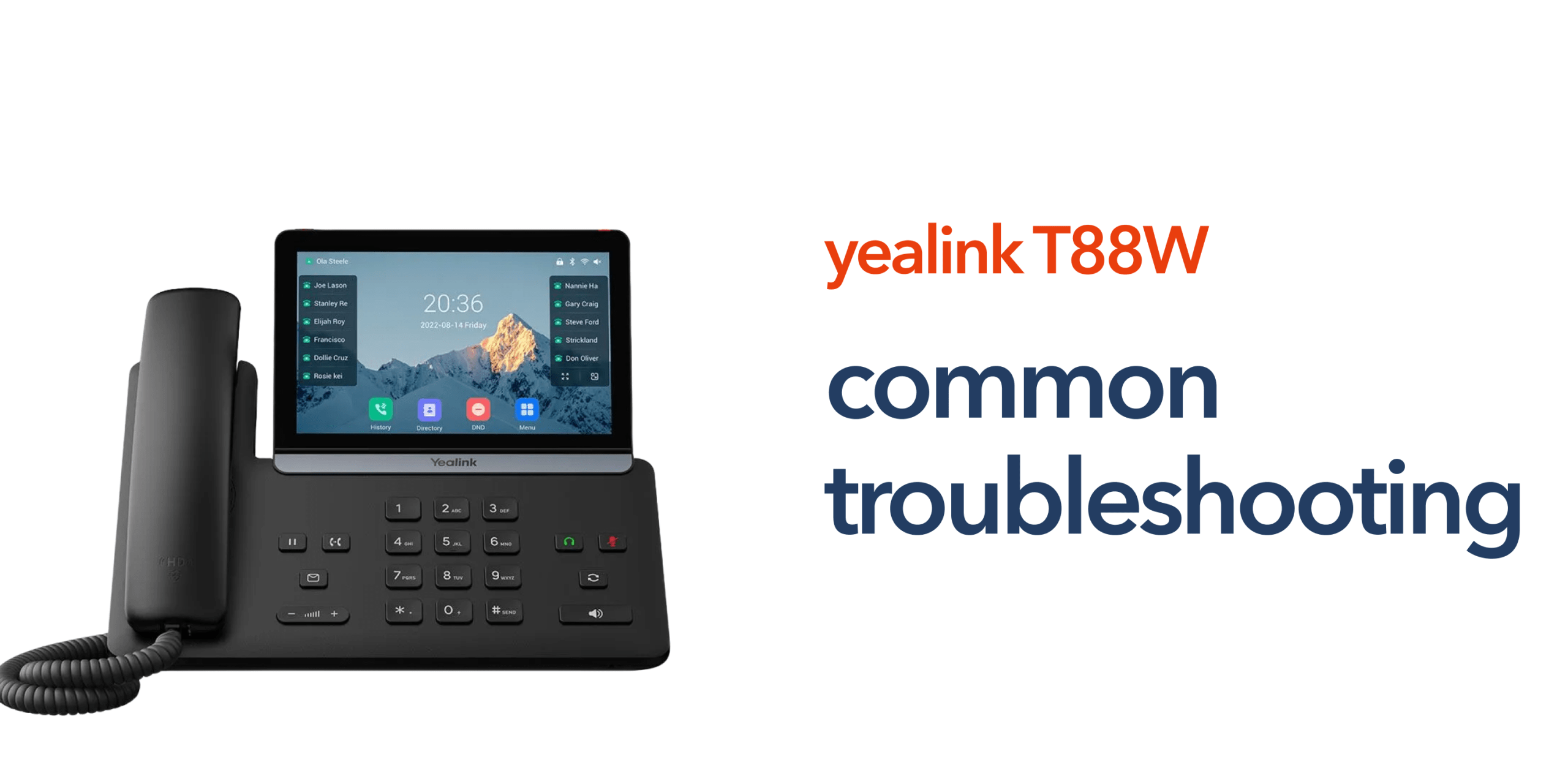
VoIP desk phones are designed to provide reliable communication for modern businesses, but like any connected device, occasional issues can occur. Most problems with the Yealink SIP-T88W Pro are typically caused by network connectivity, configuration settings, or temporary system errors.
In many cases, these issues can be resolved quickly with a few simple checks. Reviewing the phone’s network connection, verifying SIP credentials, or restarting the device can often restore normal operation.
This guide outlines the most common issues businesses may experience with the Yealink SIP-T88W Pro troubleshooting process and the practical steps that can help resolve them.
Common Issues with the Yealink SIP-T88W Pro
The Yealink SIP-T88W Pro is designed for VoIP and cloud telephony environments. Because it relies on internet connectivity rather than traditional telephone lines, many issues are related to network configuration or VoIP registration. Some of the most common problems include:
- Phone not registering with the VoIP system
- Poor call quality or audio problems
- Dropped calls or one-way audio
- Touchscreen or interface issues
- Headset or accessory connectivity problems.
Understanding the cause of these issues can make troubleshooting much faster.
Phone Not Registering to the VoIP System
One of the most common issues businesses encounter is when the phone fails to register with the VoIP platform. If the Yealink SIP-T88W Pro cannot connect to the server, it will be unable to place or receive calls.
Check Internet Connectivity
VoIP phones rely on a stable internet connection to communicate with the VoIP server. Confirm that the device is connected to the network using either an Ethernet cable or WiFi. If the connection is unstable or disconnected, the phone may not be able to register with the system.
Verify SIP Credentials
The phone must be configured with the correct SIP credentials provided by your VoIP provider. These usually include the SIP server address, the extension or username, and the authentication password. If any of these details are entered incorrectly, the device will not be able to register with the VoIP phone system.
Restart the Device
Restarting the phone can often resolve temporary connection issues. Rebooting allows the device to reconnect to the network and attempt SIP registration again, which may restore normal operation.
Poor Call Quality or Audio Problems
If calls sound distorted, delayed, or unclear, the issue is often related to network performance. Because VoIP calls rely on internet connectivity rather than traditional phone lines, call quality can be affected by bandwidth limitations, network congestion, or incorrect device settings.
Check Network Stability
VoIP calls require consistent bandwidth and low latency to maintain clear audio. If the business internet connection is unstable or heavily used, call quality may suffer. Businesses should ensure their broadband connection is reliable and capable of supporting VoIP traffic, particularly during periods of high network usage.
Review Network Prioritisation
Many business routers support Quality of Service (QoS) settings that allow VoIP traffic to be prioritised over other types of network activity. Enabling QoS can help maintain stable call quality even when other applications are using the network.
Inspect Headset and Audio Settings
If a headset is connected to the phone, confirm that the correct audio device is selected in the settings. Incorrect configuration may cause low audio levels, muted microphones, or missing sound during calls.
Dropped Calls or One-Way Audio
Dropped calls or one-way audio are often caused by network routing or firewall configuration issues. Because VoIP calls rely on internet traffic rather than traditional phone lines, network settings can sometimes interfere with how audio data is transmitted.
Check Firewall Configuration
VoIP communication requires specific network ports to remain open so that audio data can pass between the phone and the VoIP server. If a firewall blocks these ports, calls may connect successfully, but audio may not transmit correctly. Reviewing firewall settings and allowing the required VoIP ports can often resolve this issue.
Confirm NAT Settings
Network Address Translation (NAT) settings can sometimes disrupt VoIP communication by altering how data packets travel across the network. Businesses using managed routers or complex network setups should ensure NAT configuration is compatible with VoIP services so that audio traffic can pass through without interruption.
Touchscreen or Interface Issues
The Yealink SIP-T88W Pro uses an Android-based interface designed to make navigation and call management easier. However, like many smart devices, the interface may occasionally experience minor software issues such as slow response times or temporary display glitches.
Restart the Phone
Restarting the phone can often resolve temporary interface problems. A simple reboot allows the system to reset and reload its software, which may restore normal performance.
Check Firmware Updates
Keeping the device firmware up to date helps ensure the phone benefits from the latest performance improvements and bug fixes released by the manufacturer. Regular updates can also improve compatibility with VoIP platforms and cloud telephony systems.
Headset and Accessory Connectivity Problems
The Yealink SIP-T88W Pro supports a range of headsets and accessories that help businesses customise their communication setup. If a connected device is not working correctly, the issue is often related to pairing, connection settings, or audio configuration.
Verify Bluetooth Pairing
If you are using a Bluetooth headset, check that the device is properly paired with the phone and within range. If the connection fails, removing the device from the Bluetooth list and pairing it again can often resolve the problem.
Check USB Accessories
For USB headsets or other peripherals, ensure the device is securely connected and compatible with the phone. A loose or unsupported accessory may prevent the phone from recognising the device.
Review Audio Output Settings
The phone must be configured to route audio to the selected headset rather than the handset or speaker. Reviewing the audio output settings can help ensure calls are directed to the correct device.
When to Contact Technical Support
If troubleshooting steps do not resolve the issue, the problem may be related to network configuration, provisioning settings, or the VoIP platform itself. In these situations, contacting your telecom provider or IT team can help diagnose the problem more quickly. Professional support teams can check system configuration, SIP registration, and network performance to identify the root cause.
Preventing Future Issues with VoIP Desk Phones
Many common issues with VoIP desk phones can be avoided with the right system setup and regular maintenance. Because VoIP communication relies on internet connectivity and network infrastructure, ensuring these elements are properly configured can significantly improve reliability. Businesses should ensure they have reliable business broadband connectivity, correctly configured VoIP platforms, regular firmware updates, and a stable network infrastructure that can support voice traffic.
With the right environment in place, devices such as the Yealink SIP-T88W Pro can deliver consistent call quality and dependable communication for many years.
Frequently Asked Questions
Why is my Yealink SIP-T88W Pro not registering?
This is usually caused by incorrect SIP credentials, network connectivity issues, or firewall restrictions preventing communication with the VoIP server.
Why does my Yealink phone have poor call quality?
Poor call quality is often related to unstable internet connectivity, network congestion, or incorrect audio settings.
Can restarting the Yealink SIP-T88W Pro fix issues?
Yes. Restarting the device can resolve temporary connectivity or software issues by resetting the phone’s network connection.
Do VoIP phones require strong internet connections?
Yes. VoIP phones rely entirely on internet connectivity, so stable business broadband is essential for consistent call quality.