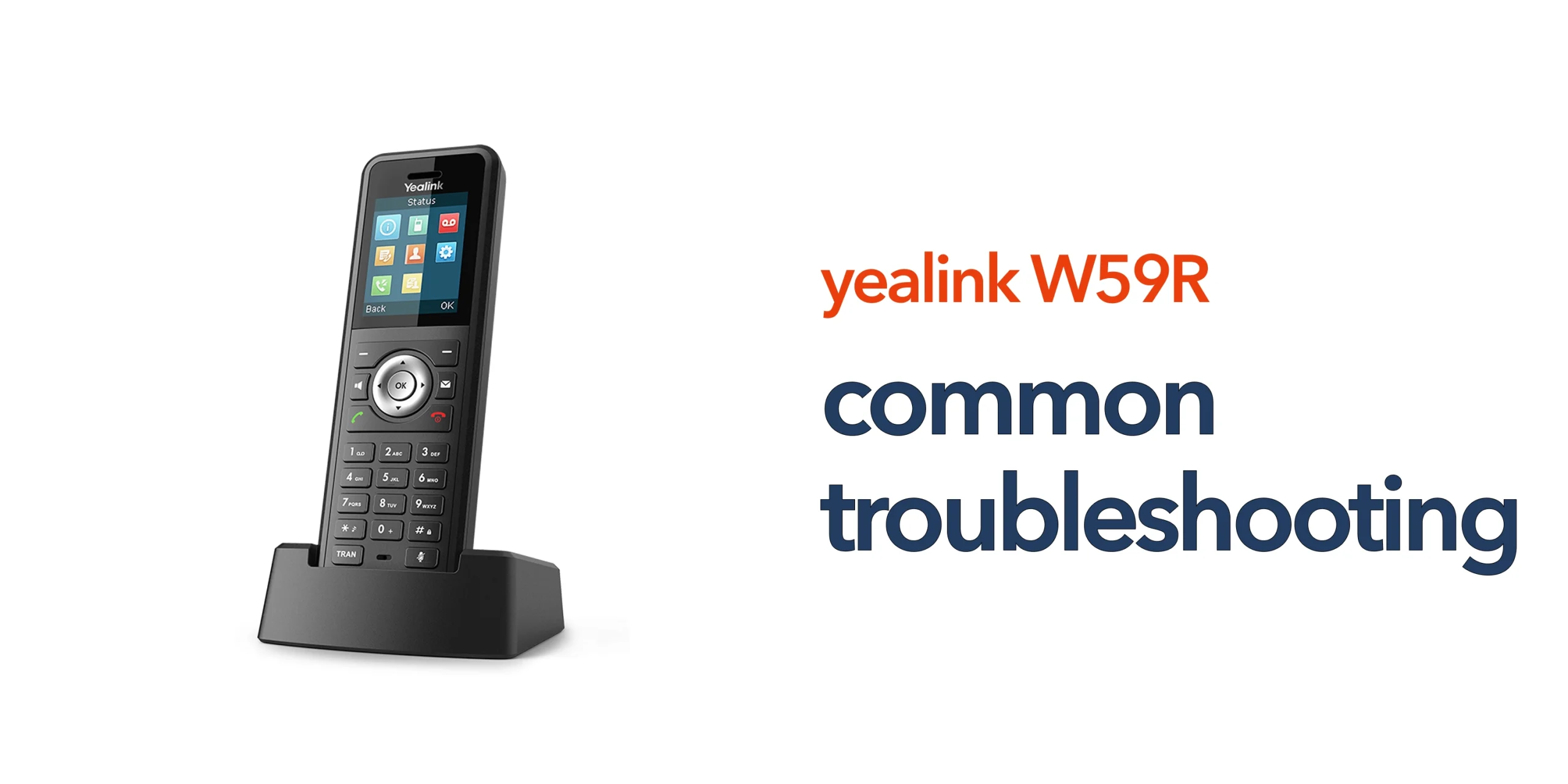
Many businesses rely on the Yealink W59R for consistent communication in environments where reliability matters. From warehouses and retail spaces to multi-site operations, it is designed to keep teams connected throughout the working day.
However, like any VoIP device, performance issues can arise when the wider setup is not fully optimised. This is where effective Yealink W59R troubleshooting becomes essential. Problems are rarely caused by the handset alone. In most cases, they are linked to network stability, DECT coverage, or configuration within your cloud telephony system.
The good news is that most issues are easy to resolve once the root cause is identified. Taking a structured approach to Yealink W59R troubleshooting helps you restore performance quickly, reduce downtime, and prevent the same problems from recurring. More importantly, it ensures your communication system continues to support your business without disruption.
Common Yealink W59R Issues and How to Fix Them
Even with a reliable device like the Yealink W59R, issues can occur if the surrounding setup is not properly configured. Most problems fall into a few common categories, and each has a clear cause once you know where to look. Understanding these issues is the first step in effective Yealink W59R troubleshooting and restoring consistent performance.
No Dial Tone or Unable to Make Calls
This is one of the most common issues and is typically linked to registration or configuration problems rather than the handset itself. In many cases, the device is unable to connect properly to your VoIP system due to incorrect SIP credentials, the handset not being registered to the base station, or errors within the VoIP platform configuration.
To resolve this, start by confirming that your SIP username and password are entered correctly. Next, ensure the handset is properly paired with the base station and recognised by the system. It is also worth restarting both the handset and base station, as this can often re-establish the connection. In most cases, the problem is not with the device but with how it is integrated into your cloud phone system.
Poor Call Quality or Dropped Calls
If calls sound distorted, delayed, or drop unexpectedly, the issue is usually related to your network rather than the handset itself. VoIP communication depends heavily on a stable internet connection, and problems such as network congestion, latency, or jitter can quickly affect call quality.
To resolve this, start by checking the stability of your business broadband connection. If your network is handling multiple high-demand activities, prioritising VoIP traffic using Quality of Service (QoS) settings can make a significant difference. It is also important to reduce unnecessary network load during peak hours where possible. Reliable connectivity is essential, as even a high-quality device cannot maintain clear communication on an unstable network.
Weak Signal or Limited DECT Coverage
The Yealink W59R uses DECT technology, which relies heavily on both base station placement and the surrounding environment. If you are experiencing a weak signal or inconsistent coverage, the issue is often linked to how the signal is being affected by the physical space rather than a fault with the device itself.
Poor coverage commonly occurs when the base station is placed in a corner, enclosed area, or near obstacles that block signal distribution. Thick walls, metal structures, and machinery can all weaken DECT signals, while larger or multi-floor buildings can stretch coverage beyond a single base station’s capability.
To improve performance, position the base station in a central, open location where the signal can spread evenly. Avoid placing it near sources of interference or physical obstructions. In larger environments, adding additional base stations is often necessary to ensure consistent coverage across all working areas. In most cases, coverage issues are environmental and can be resolved with better planning rather than replacing hardware.
Handset Not Charging or Battery Issues
Battery-related problems can quickly affect usability, especially in environments where staff rely on constant mobility. If the handset is not charging correctly or battery life has noticeably reduced, the issue is usually linked to the charging setup or normal battery wear rather than a fault with the device itself.
Common causes include a faulty charging dock or cable, degraded battery performance over time, or poor contact between the handset and charging points. To resolve this, start by checking that the charging base is properly connected to power and functioning as expected. Cleaning the charging contacts on both the handset and dock can also help restore proper connection. If the battery continues to underperform, replacing it is often the most effective solution. Regular maintenance and basic checks can significantly extend the lifespan of your device and prevent unnecessary downtime.
Handset Not Registering to Base Station
If the handset cannot connect to the base station, it will not be able to make or receive calls. This is typically a setup or configuration issue rather than a hardware fault, and it is a common scenario during initial installation or system changes.
In most cases, the problem occurs because registration mode has not been enabled on the base station, the maximum number of supported handsets has already been reached, or there is a firmware mismatch between the handset and base station. These factors can prevent successful pairing even if everything else appears to be working correctly.
Why These Issues Happen in Business Environments
Most issues with the Yealink W59R are not caused by the device itself, but by the environment it operates in. In real business settings, performance is influenced by factors such as network reliability, incorrect configuration, poor DECT coverage planning, and a lack of proper system integration.
For example, an unstable internet connection can affect call quality, while misconfigured SIP settings can prevent successful registration. Similarly, inadequate DECT planning can lead to coverage gaps, especially in larger or more complex environments. When these elements are not aligned, even high-quality devices can underperform.
This is why effective troubleshooting should always look beyond the handset. A reliable communication system depends on how well your network, devices, and cloud telephony platform work together as a complete solution.
Preventing Future Yealink W59R Issues
Fixing problems is important, but preventing them is where long-term value is created. A proactive approach reduces downtime, improves reliability, and ensures your communication system supports your business without interruption. Key steps to reduce issues:
- Maintain a stable and reliable business internet connection to support consistent VoIP performance
- Optimise DECT coverage through proper planning, especially in larger or complex environments
- Keep firmware updated across all handsets and base stations to ensure compatibility and stability
- Use correct SIP configuration and structured call routing to avoid registration and call handling issues
- Regularly review system performance to identify and resolve potential problems early
A well-configured system should run reliably with minimal intervention, allowing your team to focus on communication rather than troubleshooting.
When to Seek Expert Support
If issues continue after basic troubleshooting, the root cause is often deeper within your network or VoIP platform rather than the handset itself. This is particularly common in multi-site organisations, large warehouses or industrial environments, and businesses with more complex call routing requirements.
In these situations, resolving the problem requires a broader view of your telecom setup. Working with an experienced provider ensures your entire system is configured correctly from the start, from network performance to device integration, helping to prevent ongoing issues and maintain reliable communication across your business.
Final Thought
Most issues can be avoided with the right setup, which is why effective Yealink W59R troubleshooting is not just about fixing faults but understanding the bigger picture. When your telecom system is properly designed, configured, and supported, your devices work consistently without disruption. If your business is facing ongoing problems, it may be time to look beyond the handset and assess your wider communication setup. Speak to circle.cloud and get your system working the way it should.
FAQs
Why is my Yealink W59R not connecting to the network?
This is usually due to incorrect SIP settings, network issues, or base station connectivity problems. Checking the configuration and restarting the system often resolves it.
How can I improve call quality on my W59R?
Focus on your network. Stable broadband, proper QoS settings, and reduced congestion will significantly improve call performance.
How many handsets can a W59R base station support?
This depends on the base station model, but most support multiple handsets. Always check capacity limits during setup.
Do I need multiple base stations?
Yes, for larger environments. A single base station rarely provides full coverage in warehouses, multi-floor offices, or outdoor areas.