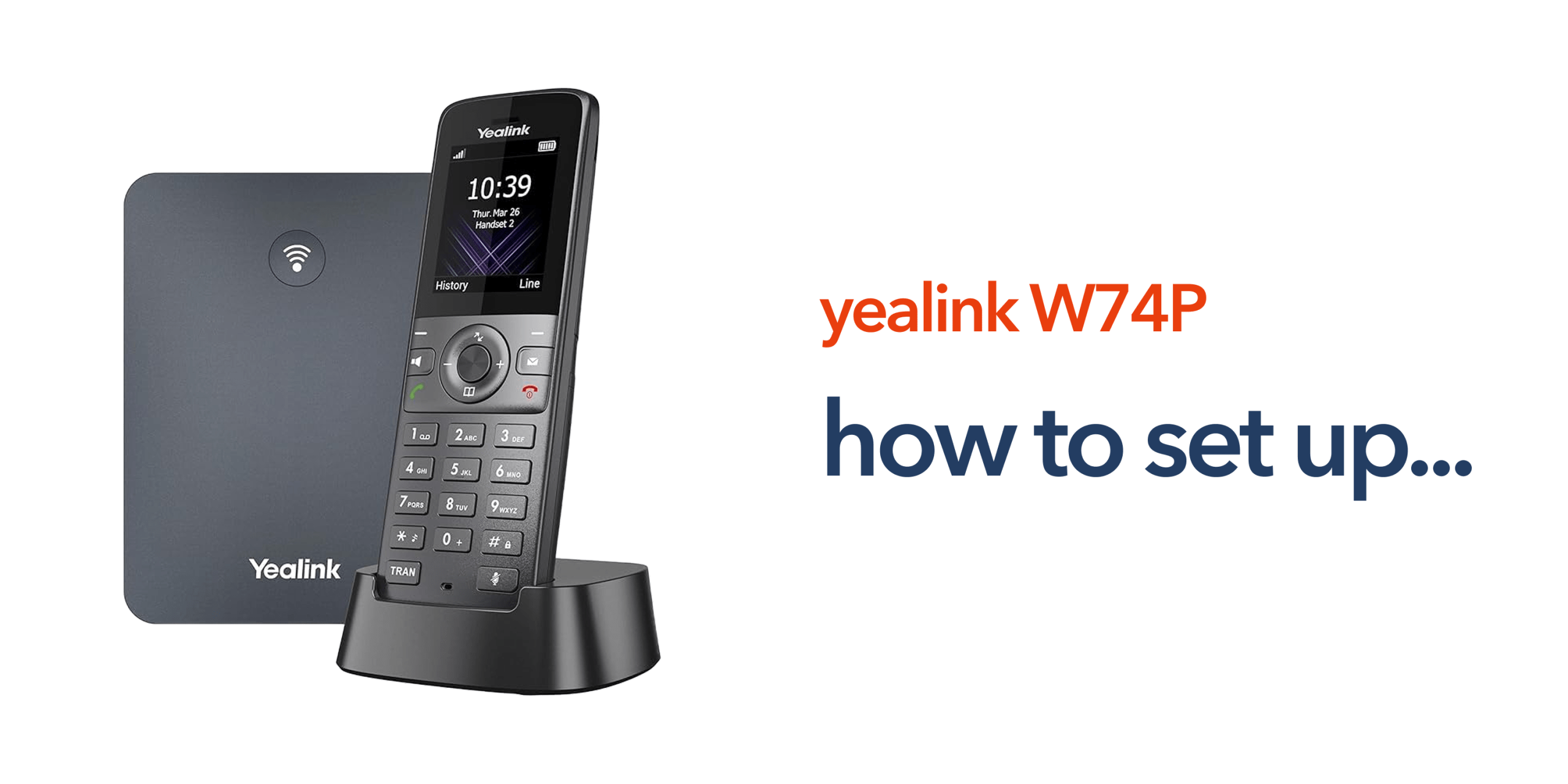
Setting up a business phone system should be straightforward. However, many organisations still find themselves dealing with complex instructions and technical documentation that is not designed for everyday business use. If you have recently deployed a DECT-based VoIP solution, this Yealink W74P setup guide is designed to simplify the process. It breaks down each stage into clear, practical steps that can be followed without specialist telecom knowledge.
Whether you are moving away from a traditional phone system, preparing for the PSTN switch-off, or introducing wireless communication across your workplace, the objective remains the same. Get your system configured correctly, ensure reliable performance, and enable your team to communicate without disruption from day one.
With the right setup, the Yealink W74P becomes more than just a handset. It becomes part of a modern, flexible business phone system that supports mobility, improves response times, and scales as your organisation grows.
What You Need Before You Start
Before beginning the setup process, it is important to make sure everything is in place. A smooth installation depends on both the right equipment and a stable network environment.
Essential Requirements
To complete this Yealink W74P setup guide, you will need:
- Yealink W74P base station
- Yealink W74P handset
- Power supply and Ethernet cable
- Access to your business network
- SIP or VoIP account details from your provider
These components form the foundation of your system. Without correct SIP credentials, the device will not be able to connect to your wider phone system.
Network Considerations
Your phone system runs over your internet connection, so network quality plays a critical role. A stable and reliable business broadband or business internet connection is essential for maintaining clear, uninterrupted calls. If your connection is slow or unstable, you may experience issues such as dropped calls, poor audio quality, or delayed connections. For businesses that rely heavily on inbound and outbound communication, this can quickly impact day-to-day operations.
For organisations moving away from legacy infrastructure such as PSTN, this setup is part of a wider shift towards modern cloud telephony and VoIP phone systems. Ensuring your network is ready not only supports initial setup but also helps future-proof your communications as your business grows.
Step 1: Connect the Base Station
The first step in this Yealink W74P setup guide is connecting the base station to your network. This allows the system to communicate with your VoIP platform and wider business phone system.
Plug the Ethernet cable into your router or network switch, then connect the power supply and allow the device to boot up. Once powered, the base station will automatically obtain an IP address from your network, enabling it to connect to your cloud telephony environment. At this stage, the base station becomes the central hub for your wireless DECT handsets, so it is important to use a stable network connection to ensure reliable performance.
Step 2: Access the Web Interface
To continue this Yealink W74P setup guide, you will need to access the device’s web interface. This is where all configuration settings are managed. Find the IP address of the base station, enter it into a web browser, and log in using the default credentials. Once logged in, you will have access to the system settings needed to connect your Yealink VoIP phone to your business phone system.
This interface acts as the control centre for your device, allowing you to configure accounts, manage handsets, and ensure the system is set up correctly for your organisation.
Step 3: Configure SIP Account Details
This is the most important stage in the Yealink W74P setup process, as it connects your device to your VoIP platform and enables calling. Enter the SIP server address, username or extension, password, and any required port settings. These details are provided by your VoIP or telecoms provider and must be entered accurately to ensure successful registration.
Once configured, the system will register with your cloud phone platform. This step links your device to your wider business telecoms infrastructure, allowing it to make and receive calls. Without correct SIP configuration, the phone will remain offline and unable to function as part of your business phone system.
Step 4: Register the Handset
Next in this Yealink W74P setup guide is pairing the handset with the base station so it can operate within your system. Power on the handset, press the registration button on the base station, and follow the on-screen instructions to complete the pairing process. Once registered, the handset becomes part of your wireless communication setup and is ready to handle calls.
This is where DECT technology comes into play, allowing employees to move freely around the workplace while staying connected. It provides the flexibility many businesses need without relying on fixed desk phones.
Step 5: Assign Extensions and Features
Once the handset is registered, the next step is to configure how it operates within your phone system. Assign extension numbers, set up call routing, configure voicemail, and enable features such as call transfer and hold. These settings ensure calls are directed correctly and handled efficiently across your organisation.
At this stage, the device becomes a fully functional part of your business phone system, allowing your team to manage calls professionally and maintain consistent communication across departments or locations.
Step 6: Test Your Setup
Before going live, the final step in this Yealink W74P setup guide is to run a series of checks to confirm everything is working as expected. Make an outbound call, receive an inbound call, check call quality, and test internal extensions between users. These simple checks help identify any configuration or network issues before they impact day-to-day operations.
Taking the time to test your setup ensures your system is fully operational, delivering reliable communication from the moment your team starts using it.
Quick Yealink W74P Setup Checklist
The checklist below gives a clear overview of the full Yealink W74P setup guide, allowing you to quickly track progress and ensure no key steps are missed. It is especially useful for businesses deploying multiple devices or rolling out a new phone system across teams.
- Connect the base station to your network using an Ethernet cable
- Power on the device and allow it to fully boot
- Access the web interface using the base station IP address
- Enter your SIP account details provided by your VoIP provider
- Register and pair the handset with the base station
- Assign extensions and configure call features such as voicemail and routing
- Test inbound and outbound calls to confirm everything is working
How Long Does Setup Take?
Most businesses can complete the Yealink W74P setup within 15 to 30 minutes. This assumes you have your SIP credentials ready and a stable network connection in place. For larger deployments with multiple handsets, custom call routing, or multi-site environments, setup may take longer depending on the level of configuration required. In most cases, once the base station is connected and the VoIP account is configured, the system can be up and running quickly with minimal disruption to your business.
Common Setup Mistakes to Avoid
Even with a straightforward process, small oversights during installation can lead to ongoing issues. Avoiding these common mistakes will help ensure your system performs reliably from the start.
- Incorrect SIP credentials: Wrong details will prevent registration. Always double-check inputs.
- Weak network connectivity: Poor connections cause dropped calls and low audio quality.
- Skipping firmware updates: Outdated firmware can lead to bugs and security risks.
- Poor placement of the base station: Bad positioning reduces signal range and call reliability.
A properly configured system not only improves day-to-day communication but also reduces the risk of disruption, helping your business maintain consistent and professional call handling.
Why Setup Matters for Business Performance
A correctly configured system has a direct impact on how your business communicates day to day. Poor setup can lead to missed calls, delays, and frustrated teams, while a well-configured system supports smooth and reliable operations. Reliable VoIP systems support faster response to customers, better internal collaboration, consistent call quality, and scalable growth across locations. This is why many organisations are moving away from legacy phone systems and adopting modern cloud telephony solutions that are built for flexibility, reliability, and long-term business growth.
Conclusion
Setting up your phone system does not need to be complex. With the right approach, this Yealink W74P setup guide helps you get your system up and running quickly and correctly. For businesses moving to modern VoIP phone systems, the real value lies in reliable performance, flexible communication, and the ability to scale as your organisation grows. If you want a setup that works from day one and continues to support your business over time, working with experienced telecom specialists like circle.cloud can help ensure everything is configured properly and ready for long-term use.
FAQs:
How long does it take to complete the Yealink W74P setup guide?
Most businesses can complete the setup within 15 to 30 minutes, depending on network configuration and VoIP provider requirements.
Can the Yealink W74P support multiple users?
Yes. The system supports multiple handsets connected to a single base station, making it suitable for growing teams.
Do I need technical expertise to set it up?
Basic setup is straightforward. However, larger deployments may benefit from support from a telecom provider.
Can this system replace traditional phone lines?
Yes. The Yealink W74P works with VoIP platforms, making it a suitable replacement for PSTN-based systems.
Does the Yealink W74P require a VoIP provider?
Yes. The device must be connected to a VoIP or cloud phone system to function. It does not work with traditional PSTN lines without additional infrastructure.